How to get API Key / Token
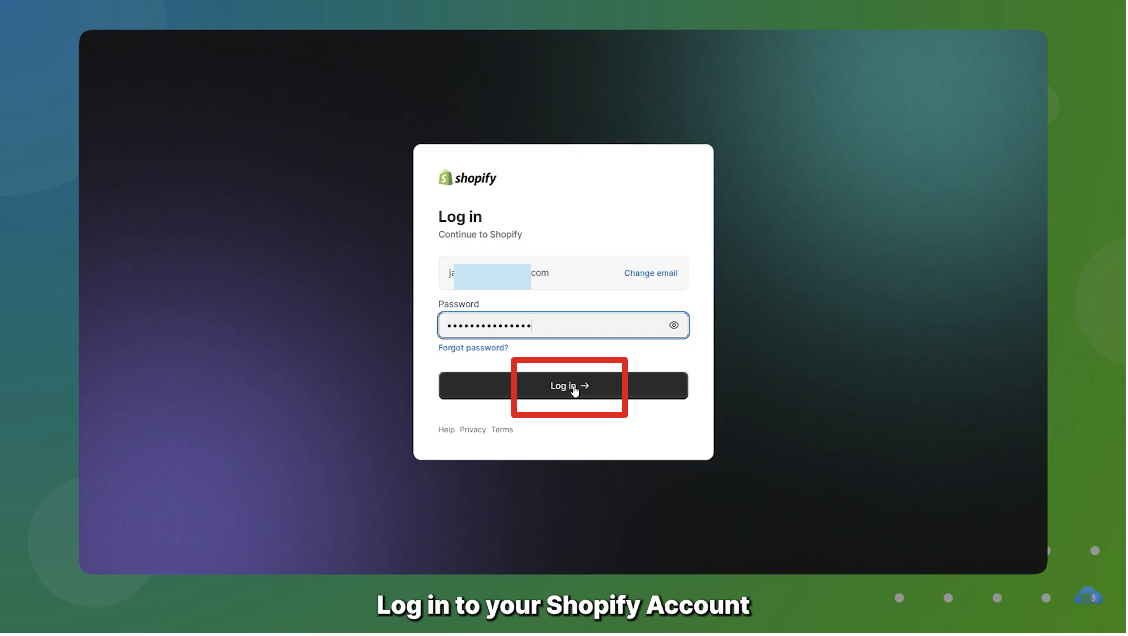
Step 1: Log in to your Shopify account
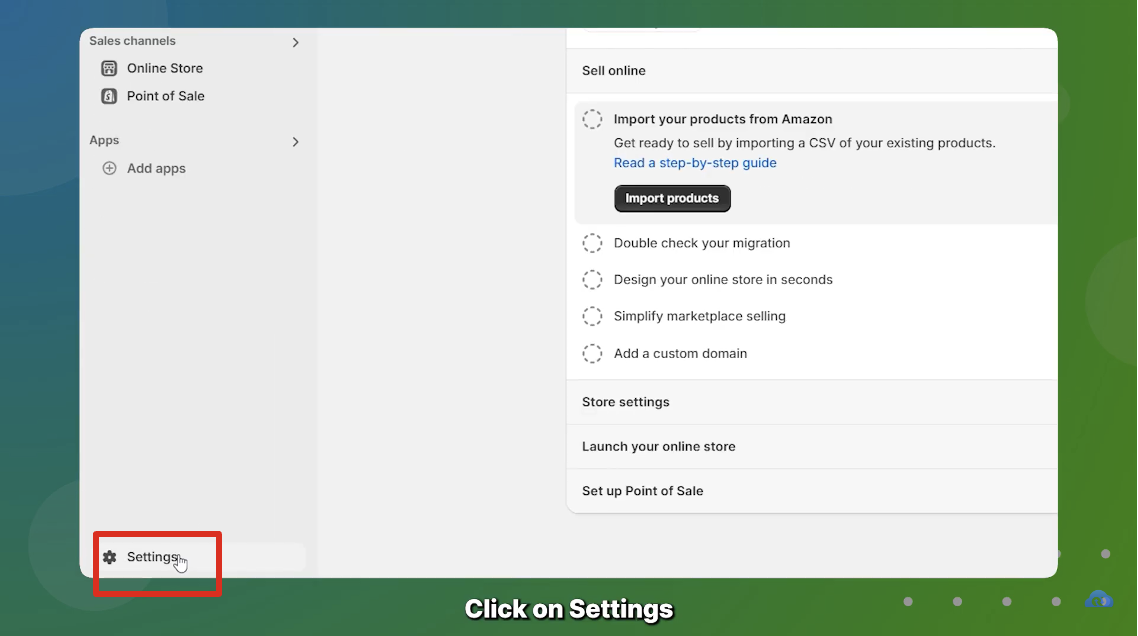
Step 2: Once you are on your account, click on the Settings button in the bottom left corner.
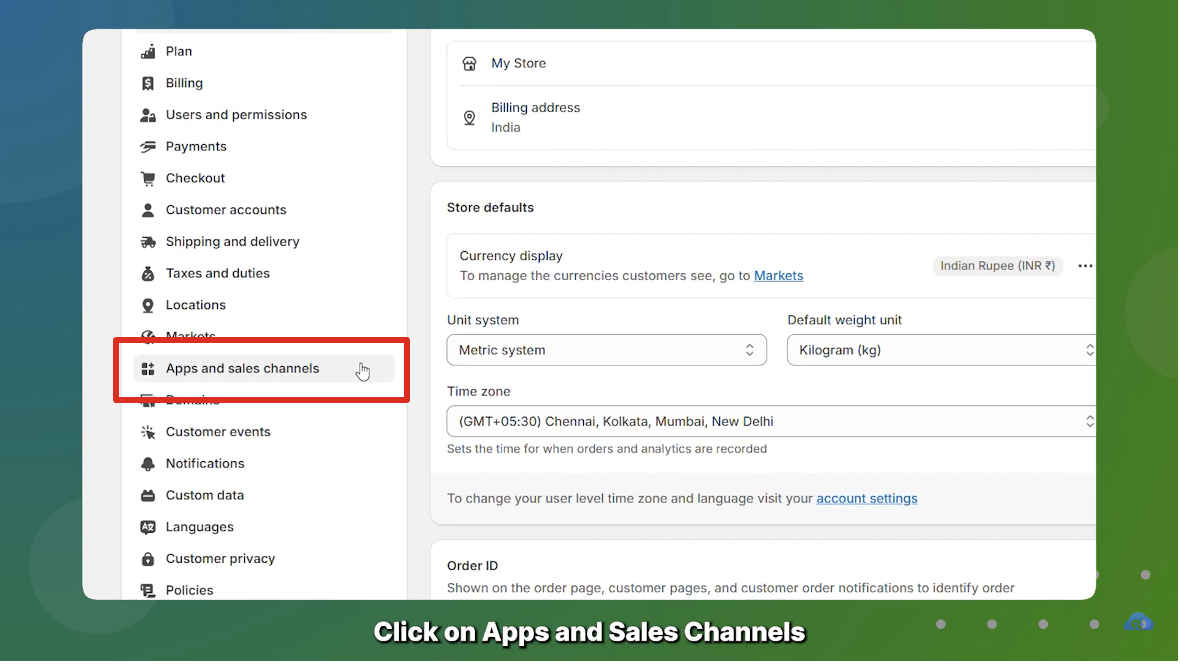
Step 3: Under Settings, go to Apps and Sales Channels
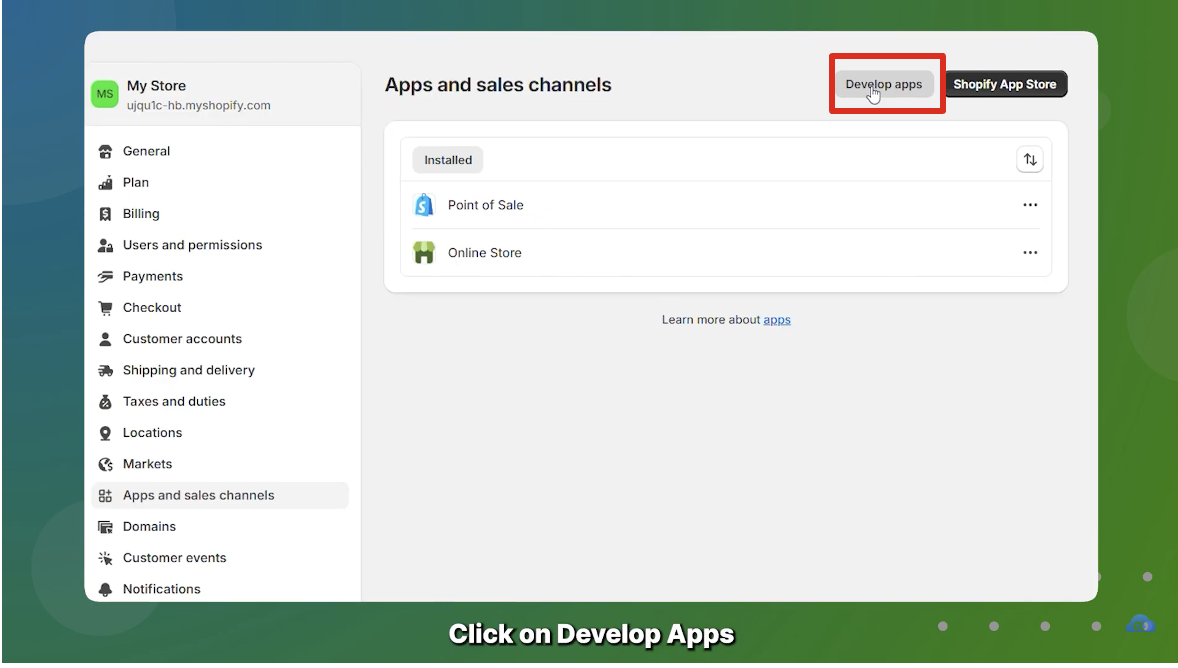
Step 4: Click on Develop Apps - We'll have to create an app to generate the API Access Token
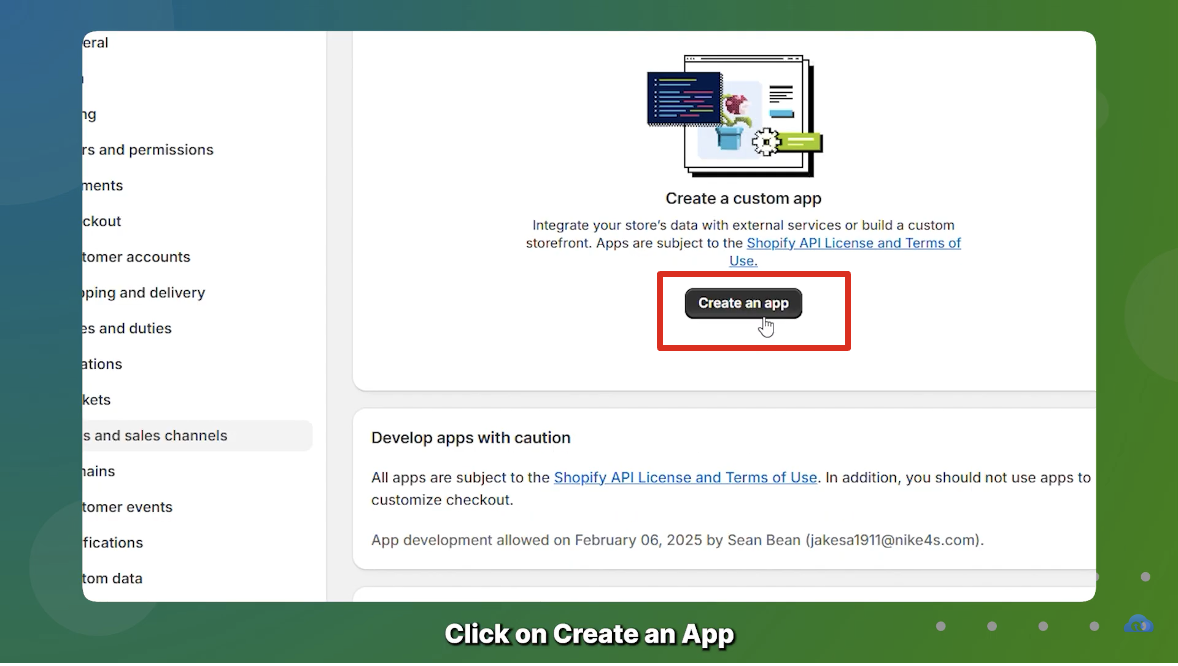
Step 5: Click on Create an App
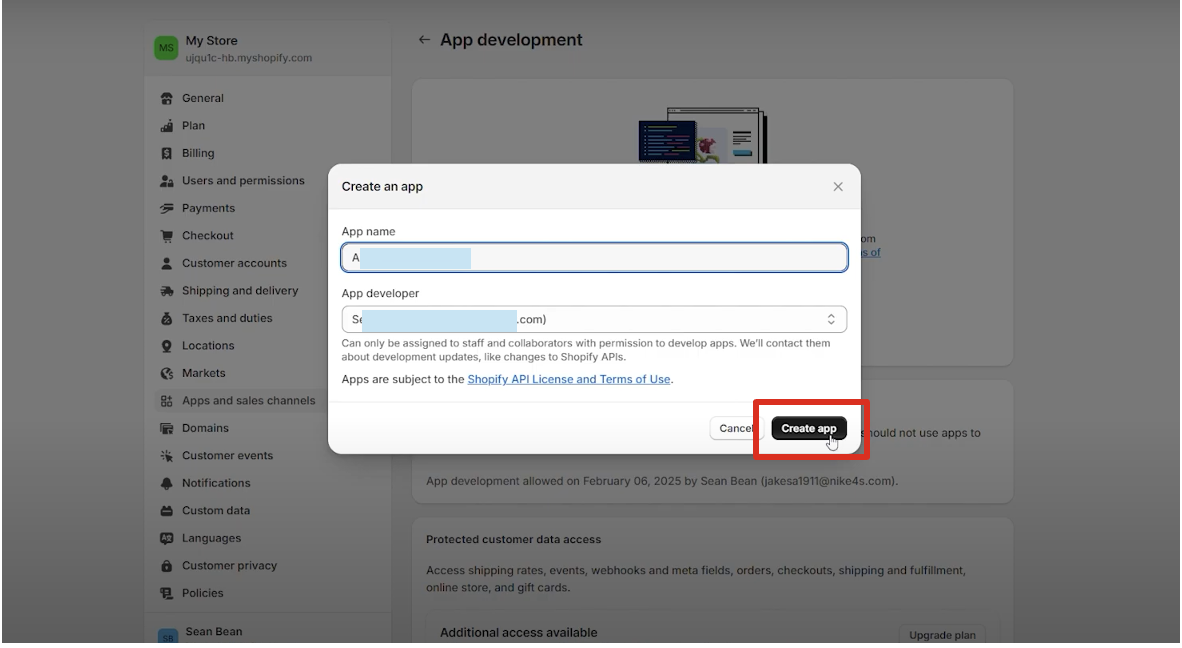
Step 6: Add the App name and App developer. You can use "Glance" or "Glance AI" as the app name — this is just for your internal reference to track that the app was created for Glance. For the app developer, simply enter your or the developer's name. After filling in these details, click on Create App.
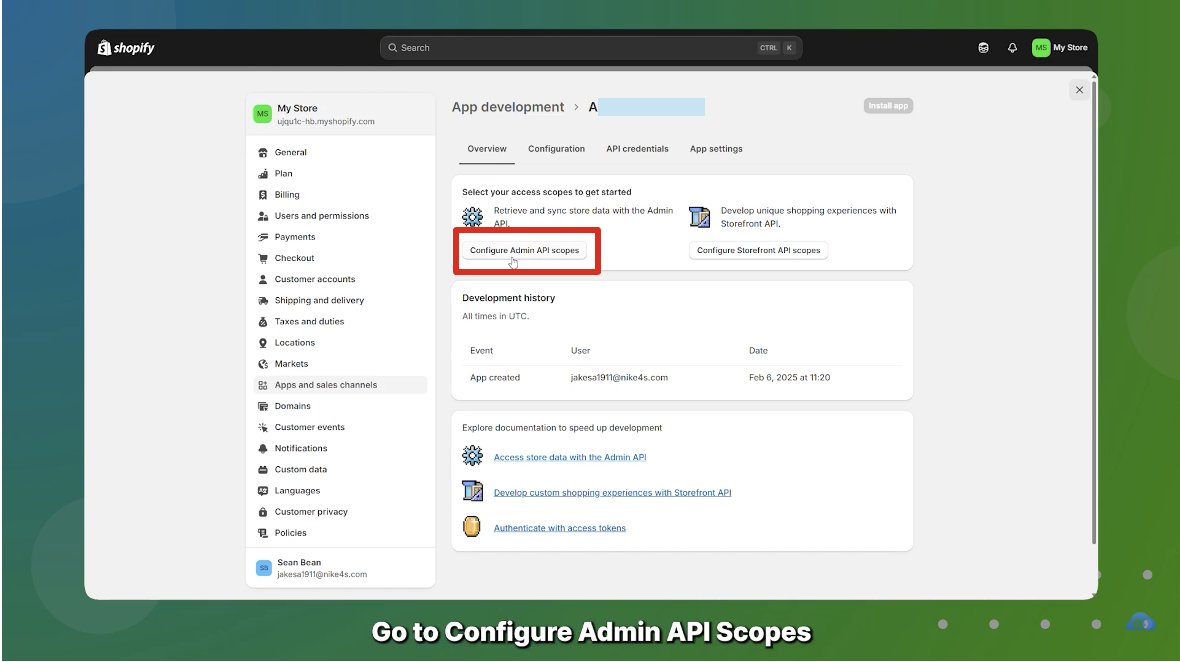
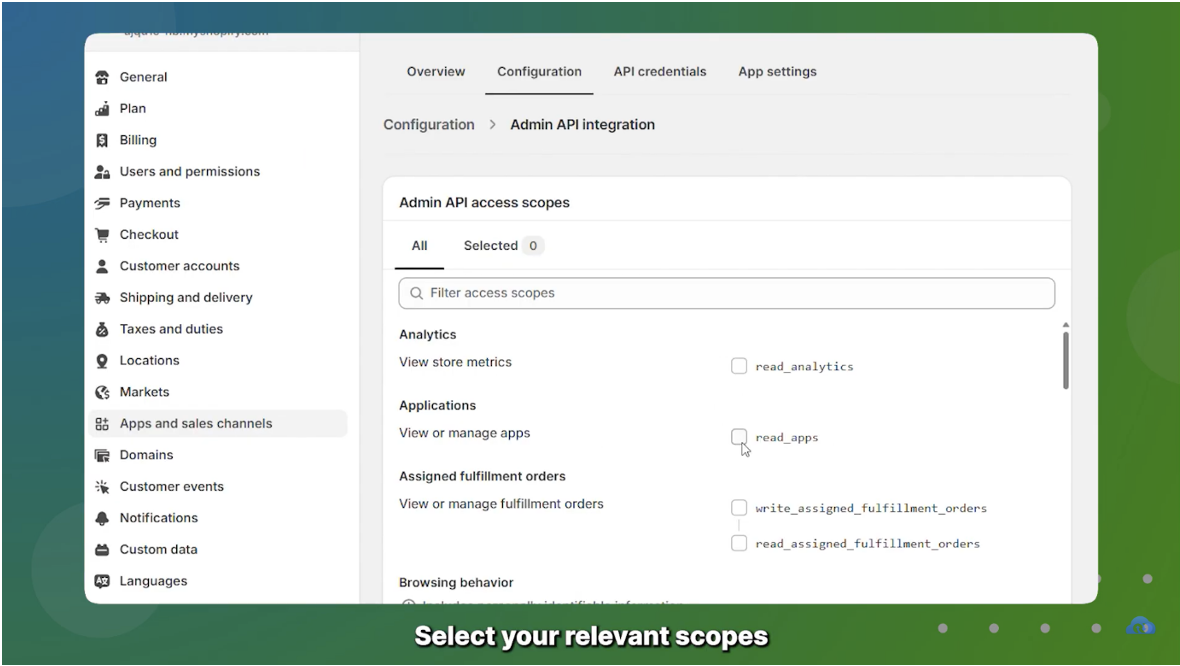
Step 7: Once the App is created, click on Configure Admin API scopes
Step 8: Here, you'll tick four boxes, giving Glance the required access for integration:
read_product_feedread_productsread_product_listingsread_all_ordersorread_orders
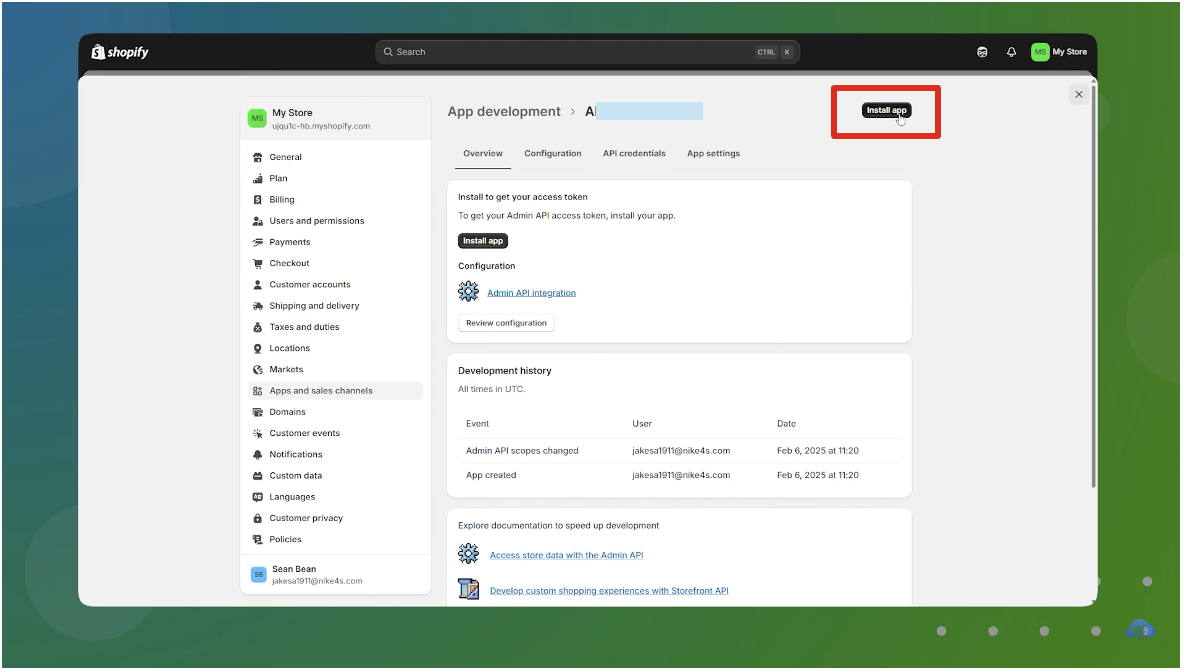
Step 9: Now, go to the overview section and click on Install App – located in the top right corner.
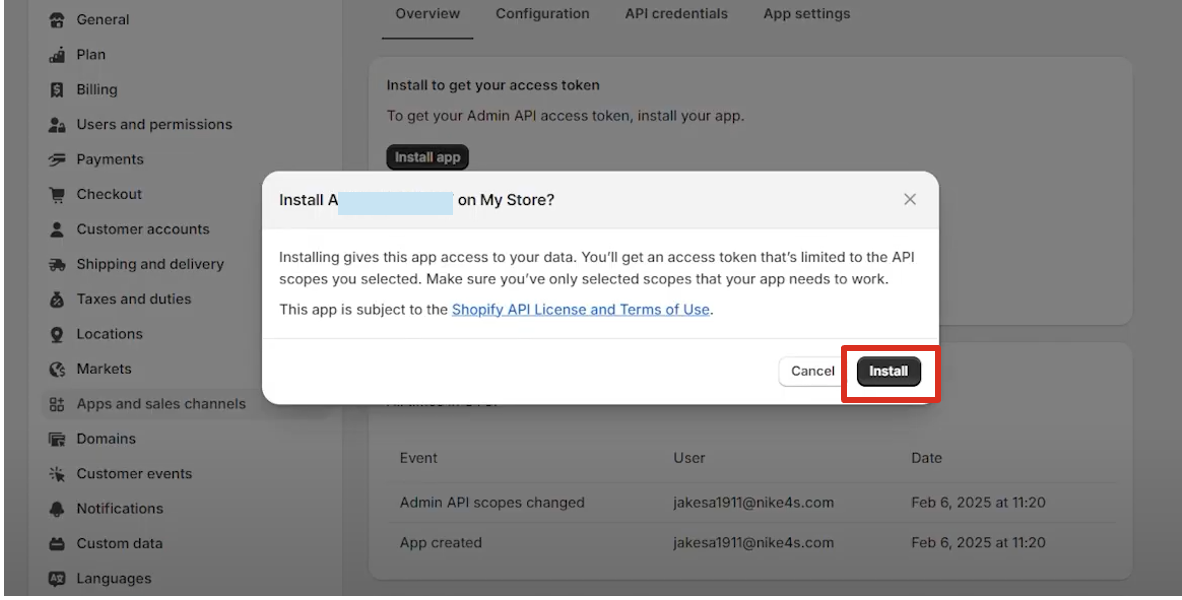
Step 10: Click on Install
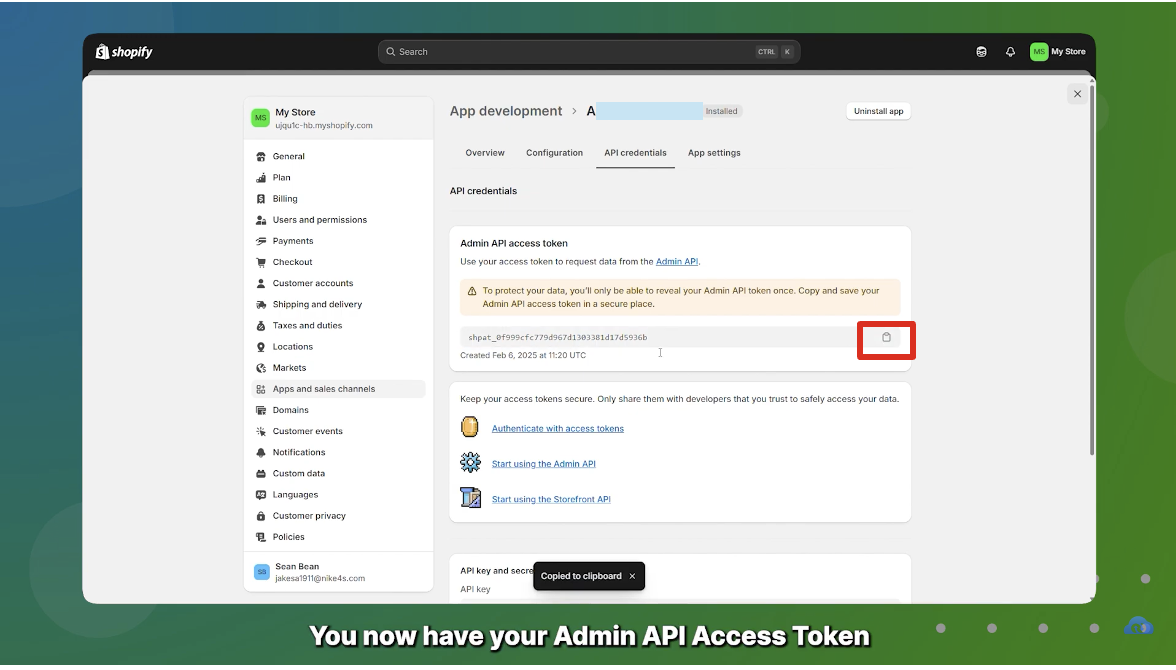
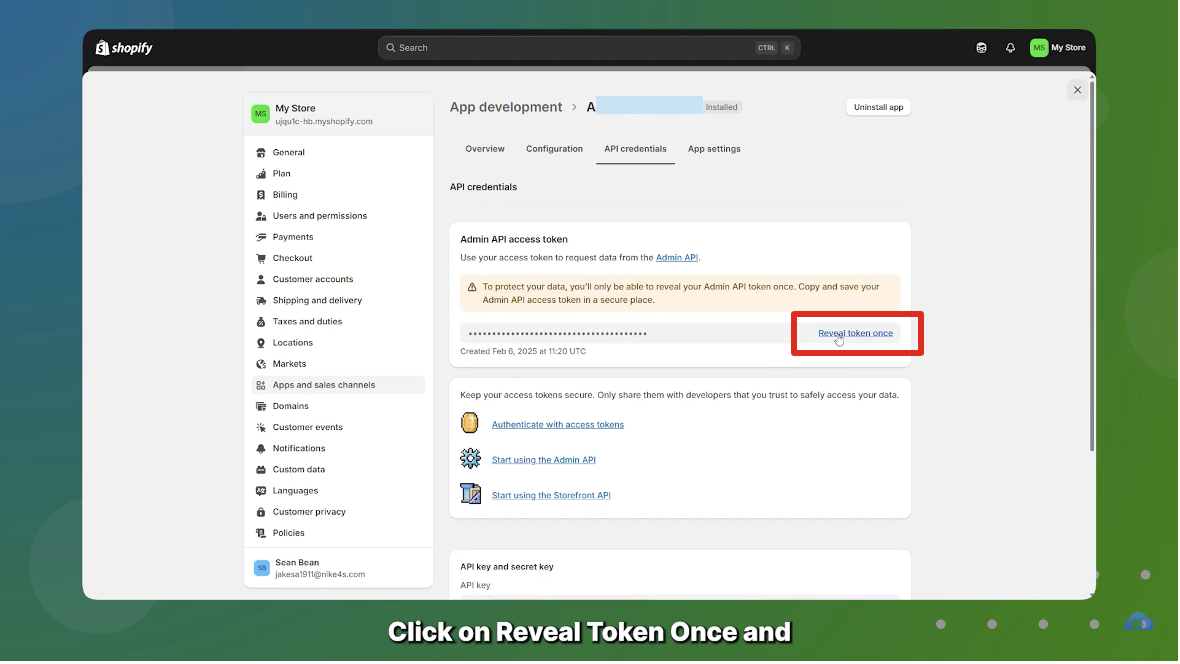
Step 11: In the API credentials section, you'll be able to see Reveal token once, click on it.
Step 12: Now the API Key will be visible. Copy it and save it somewhere and share it with the Glance team.
Important
The API token is only shown once. Make sure to copy and save it securely before closing the page.