Pixel on GTM
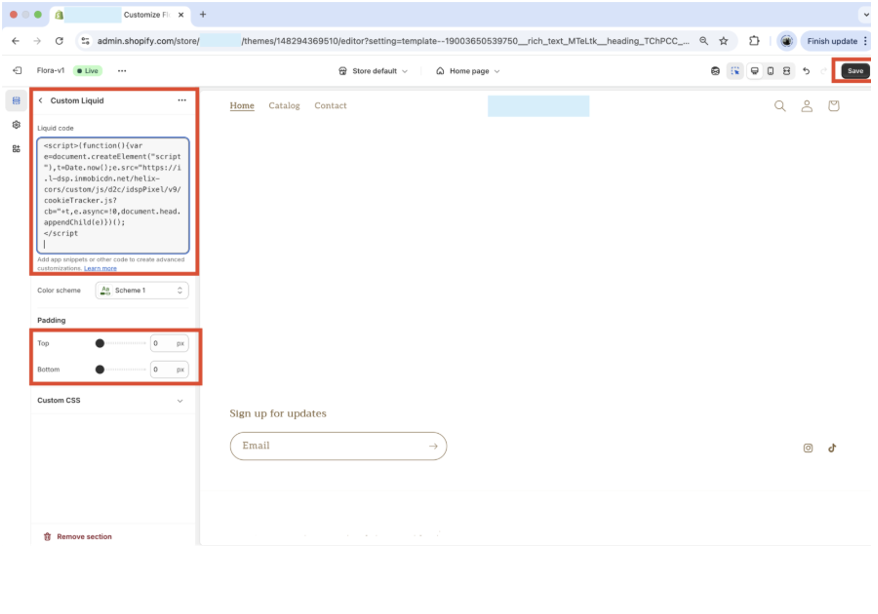
Before you begin, verify that your GTM configuration works on all pages of your site. If your site runs Shopify in headless mode, double check that GTM also fires on your checkout page. If not, integrate the Shopify Pixel to capture events on your checkout page.
A. Installing the iPixel
Step 1: Log in to your Google Tag Manager account. Click your website's container, and under Tags, click New. For Tag Configuration, choose Custom HTML. Enter a name, for example "iPixel-Init".
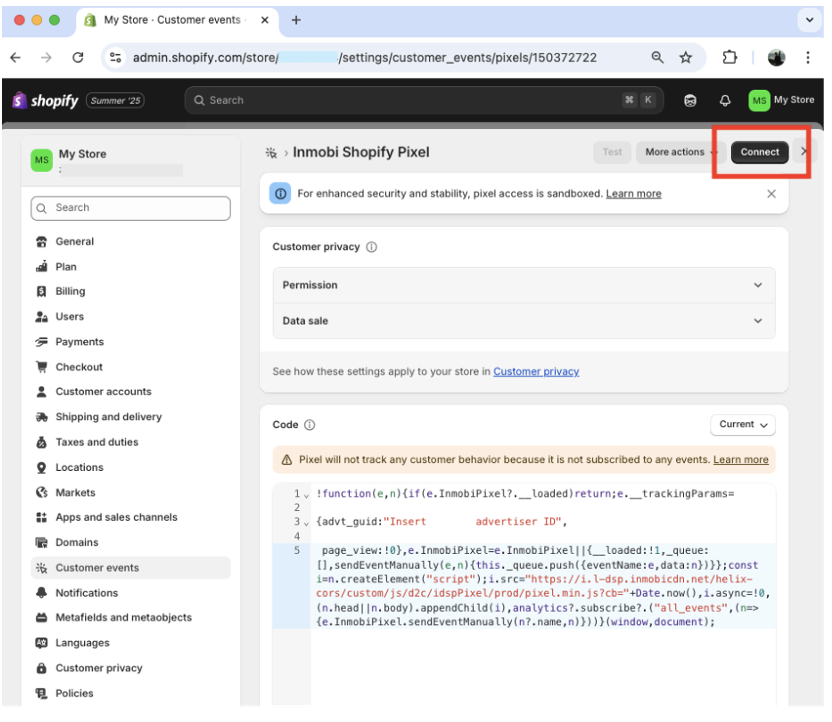
Step 2: Copy and paste the following code into your tag. Replace <<YOUR-EVENT-KEY>> with the advertiser key shared by the Glance team.
<script>
  var ADVERTISER_KEY = "<<YOUR-EVENT-KEY>>";
  !function(w,d){
    var s=["https://i.l-dsp.inmobicdn.net/helix-cors/custom/js/d2c/idspPixel/prod/gpixel.js"];
    if(!w.InmobiPixel){
      var p=w.InmobiPixel=function(){
        p.performOperation ? p.performOperation.apply(p,arguments) : p._queue.push(arguments);
      };
      p._queue=[]; p.ts=Date.now();
      var f=d.getElementsByTagName("script")[0];
      for(var i=0;i<s.length;i++){
        var x=d.createElement("script");
        x.async=!0;
        x.src=s[i];
        f.parentNode.insertBefore(x,f);
      }
    }
  }(window,document);
  InmobiPixel("init","glance");
</script>
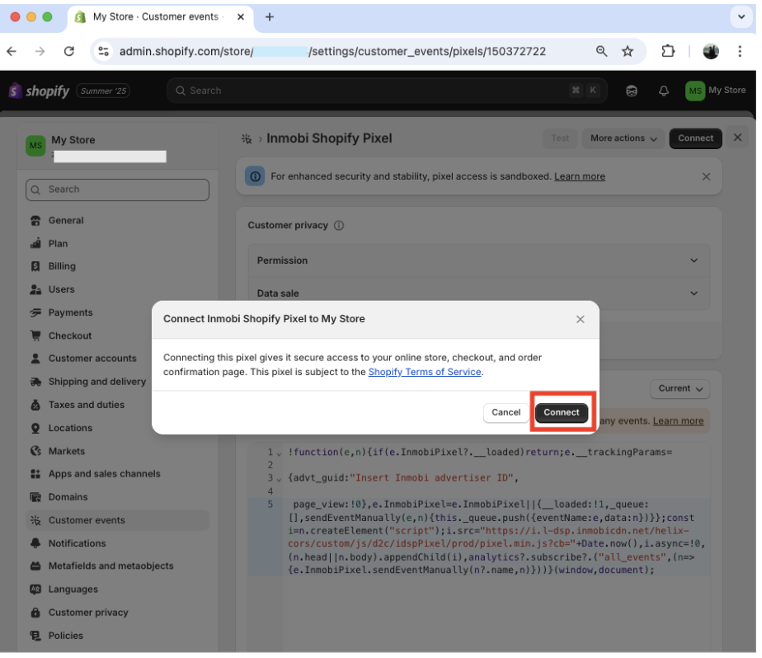
Step 3: Click under Triggering and select Initialization - All Pages. This ensures that the iPixel loads on all pages. Click Save.
Caution
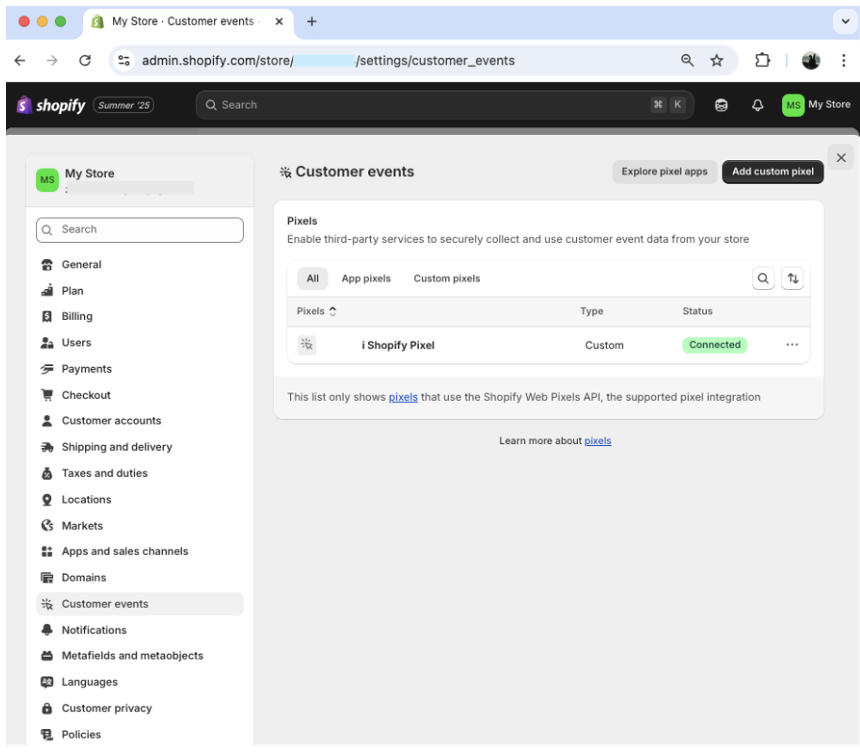
Pixel should load and initialize on each page of your site. Ensure that your GTM Initialization - All Pages Trigger fires on each page to which you send an event.
Note
At a minimum, provide page_view, view_item, add_to_cart, begin_checkout, and purchase events. Also include sign_up or login if your site uses these events.
B. Tracking Events with iPixel
To send an occurrence of an ecommerce event to iPixel, use the following syntax:
<script>
  InmobiPixel("track", "event_name", event_data);
</script>
Parameters:
| Name | Type | Description |
|---|---|---|
event_name |
string | The name for this event. See iPixel Events reference. |
event_data |
object | The data for this event. Not required for page_view. |
C. Passing Data to the iPixel
Method 1: Single GTM Variable
Create a GTM Variable that contains the payload:
<script>
  InmobiPixel("track", "add_to_cart", {{iPixel - Add To Cart}});
</script>
Method 2: Composition of GTM Variables
Build the object using multiple variables:
<script>
  InmobiPixel("track", "add_to_cart", {
    "currency": "USD",
    "value": {{iPixel - Add To Cart - Value}},
    "items": {{iPixel - Add To Cart - Items}}
  });
</script>
GA4 Compatibility
iPixel is compatible with the Google Analytics 4 (GA4) API. If your Data Layer is configured in GA4 format, you can pass Data Layer Variables directly:
<script>
  InmobiPixel("track", "add_to_cart", {{GA - Ecommerce}});
</script>